Inside PrismWave
Four stages, from track to MP4. Each one lives in a tab of the app.
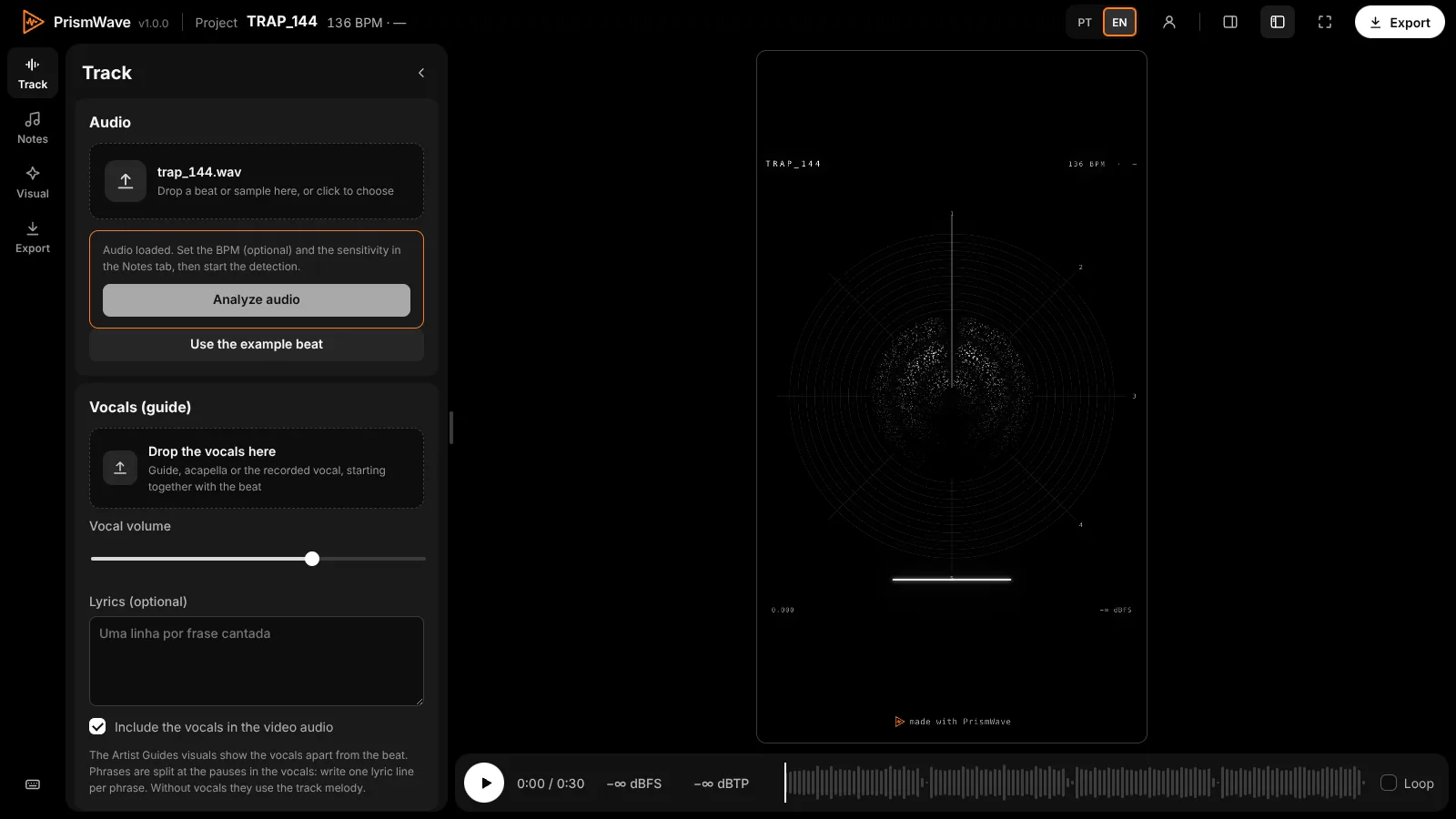
Track
Drop in the beat or a sample. Add the recorded vocal and the lyrics, one line per phrase, for the visuals in the Artist Guides category.
The level meters, in dBFS and true peak (dBTP), show right away whether the beat is clipping.
The video title and texts live here too.
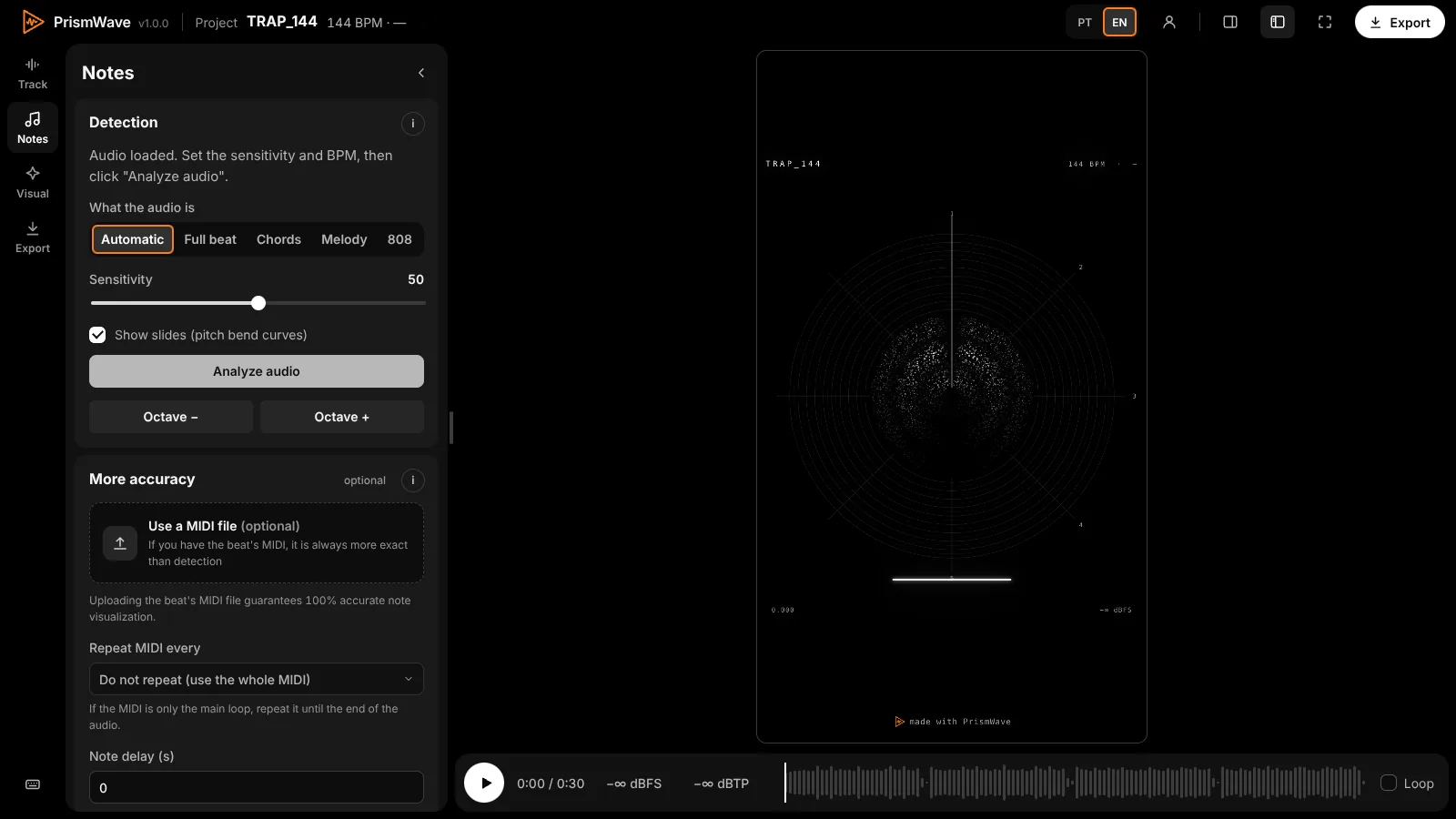
Notes
Tell it what the audio is: automatic, full beat, chords, melody or 808. Adjust sensitivity and turn on slides to follow pitch-bend curves.
Nothing runs on its own when you drop the audio: set the sensitivity and BPM, then click Analyze audio. If you have the beat's MIDI, drop it in: it makes the note visualization 100% accurate. If the MIDI is only the main loop, pick Repeat MIDI every 2, 4, 8 or 16 bars.
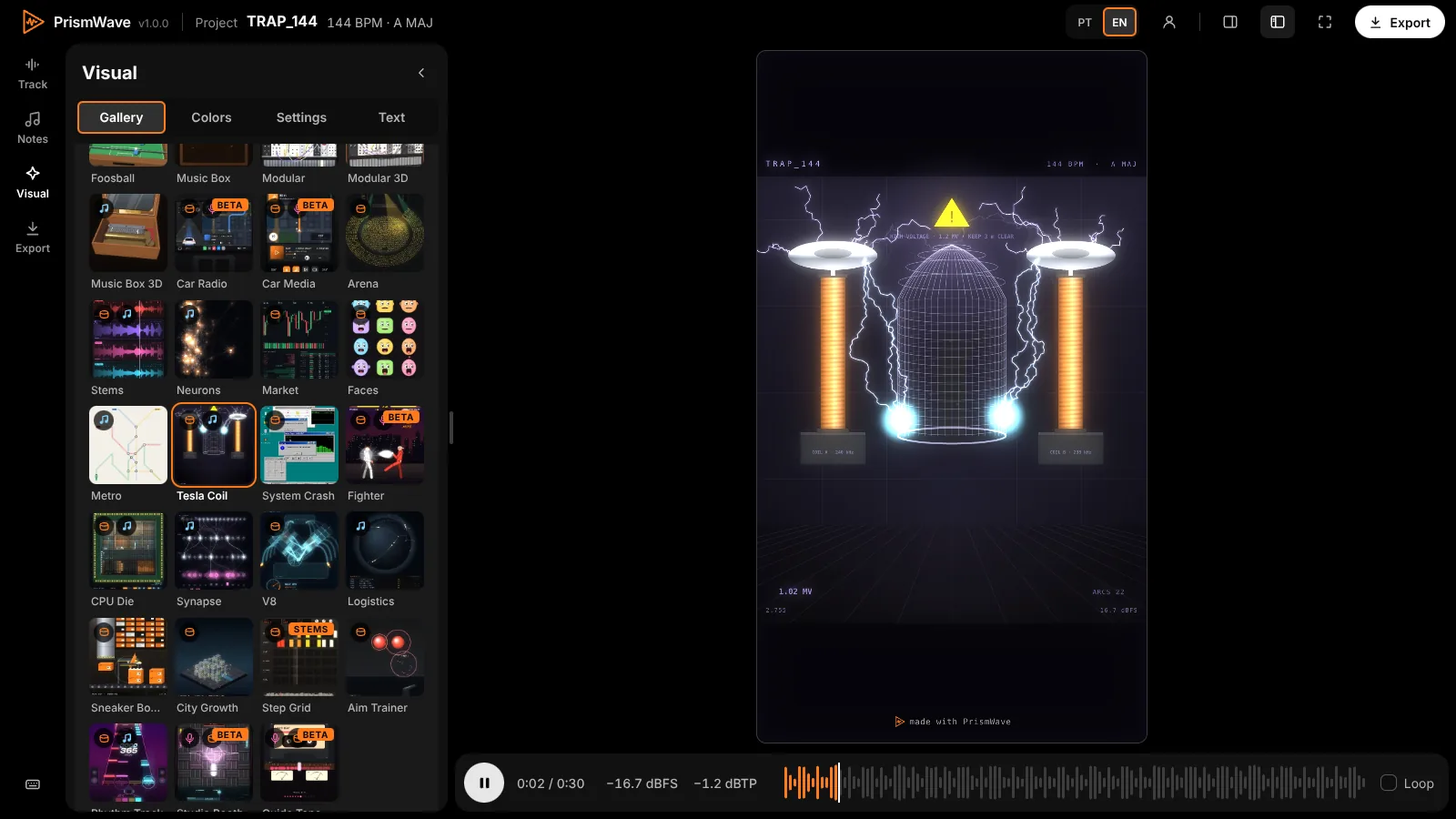
Visual
The gallery has more than 30 visuals, with search and filters. Switch visuals while the beat plays and see the result instantly.
In the Colors, Settings and Text tabs you change the palette and the text shown in the video.
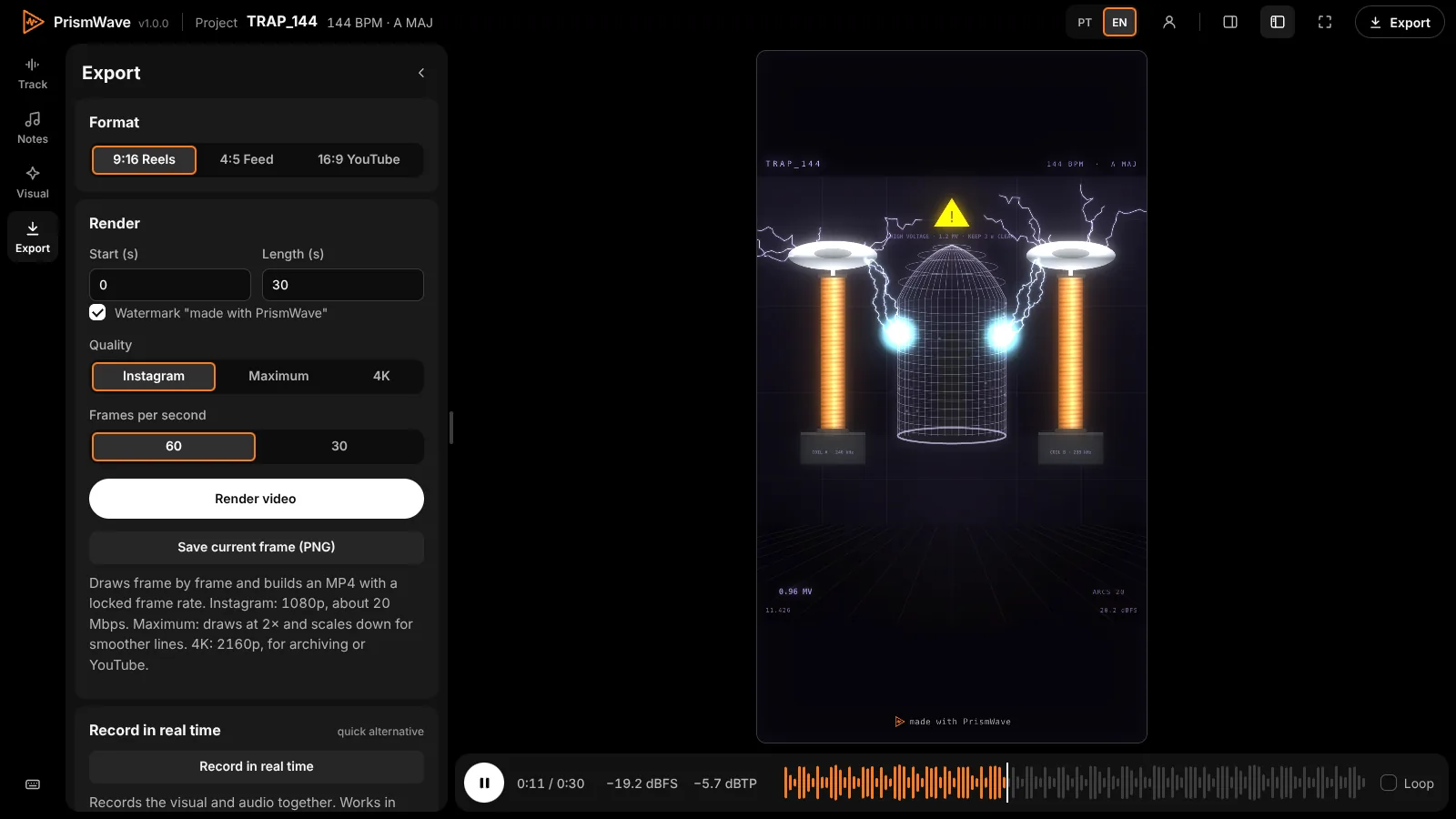
Export
Pick 9:16 Reels, 4:5 Feed or 16:9 YouTube, the section of the beat, the quality (Instagram, Maximum or 4K) and 30 or 60 frames per second.
Render video draws frame by frame and builds an MP4 with a locked frame rate. Record in real time is the quick alternative. Save current frame makes a PNG.
The “made with PrismWave” watermark is optional in the full version.
Aurora: the visual that follows the mood of the track
Ribbons of light that respond to the notes and the low end of the beat. One of the 30+ modes available, and the best fit for long melodies and pads.